
TL;DR
- YouTube Studio is the central hub for managing your channel, from uploading and editing videos to managing playlists, comments, copyright, monetization, and channel settings.
- Use the Dashboard and Ask Studio to understand what’s happening on your channel and generate content ideas based on your existing performance and audience.
- YouTube Analytics helps you make data-driven decisions. Pay particular attention to views, impressions, CTR, and average view duration to understand how viewers discover, click, and engage with your videos.
- Use your Audience and Trends data to plan future content. Look at what different viewer groups watch, what your audience is interested in, and where potential content gaps exist.
- Improve your videos by testing titles, thumbnails, and video structure. YouTube Studio’s A/B testing lets you compare different versions and use the results to learn what works for your audience.
- YouTube Studio is also where you manage the practical side of your channel, including comments, copyright claims, monetization, playlists, and your channel’s branding and customization.
In this guide, we'll walk through YouTube Studio’s interface step by step and explain not only where to find its main features, but also how to use the information they provide to improve your content and make more informed decisions about your channel.
At the end of this article, you’ll know how to use YouTube Studio to grow your channel effectively.
What Is YouTube Studio?
YouTube Studio is YouTube's free platform for managing your channel and content and it’s essentially the control room for your channel.
From Studio, you can upload and edit videos, manage Shorts and playlists, check analytics, moderate comments, review copyright issues, manage monetization, customize your channel and access tools designed to help you plan future content.
YouTube Studio can therefore become part of almost every stage of your content workflow.
The more you grow as a YouTuber, the more you’ll understand the tools YouTube Studio provides, identify your channel’s weak points, and learn how to use them to improve your channel.
In fact, learning how to use it early is a good idea because it helps you understand what is happening with your channel instead of treating YouTube like a platform where you simply upload videos and hope for the best.
Is YouTube Studio Free?
Yes.
YouTube Studio is available for free to everyone with a YouTube account.
You don't need to pay for access to the core Studio tools used to upload videos, manage your channel, view analytics, moderate comments, or customize your channel.
Some YouTube features, however, depend on your channel's eligibility. For example, monetization features require you to meet the relevant YouTube Partner Program requirements before they become available.
The same applies to certain advanced creator tools. Features can also vary by country, device, channel type, or rollout stage.
This is particularly important in 2026 because YouTube is continuing to update the Studio experience. YouTube says that an updated Studio experience is being gradually rolled out, meaning your interface may not look exactly like another creator's interface.
Once you have a YouTube channel, getting started is straightforward: you can access Studio directly from your YouTube account.
How to Access YouTube Studio
To access YouTube Studio, open YouTube on your computer, click your profile picture, and select YouTube Studio.
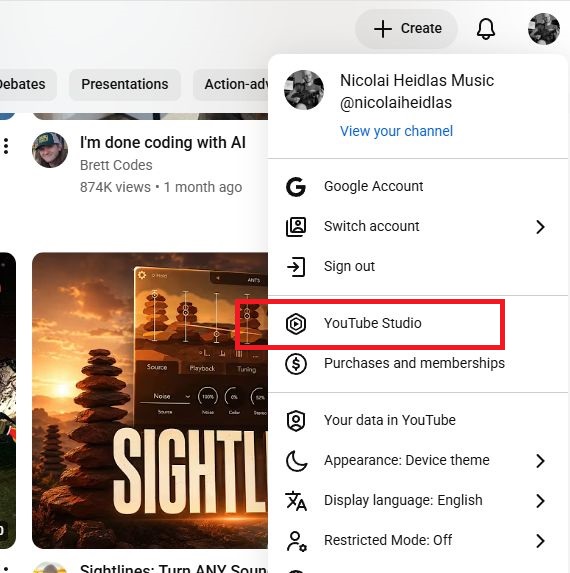
Once you're inside, you'll see the main Studio navigation on the left side of your screen.
Depending on your channel and eligibility, you may see sections such as:
- Dashboard
- Content
- Analytics
- Community
- Languages
- Content Detection
- Earn
- Customization
- Audio Library
YouTube frequently tests, introduces, and changes features, so not every channel necessarily sees exactly the same options.
YouTube Studio Mobile App
YouTube offers the YouTube Studio mobile app for Android and iOS, giving you access to many of the tools you use on desktop.
The mobile app is particularly useful for creators who publish frequently or need to monitor their channel while away from their computer.
You can quickly check your analytics, review comments, monitor recent content, and make certain changes from your phone.
The app is also useful for responding to comments quickly. Community interaction doesn't always happen while you're sitting at your desk, and being able to moderate or answer comments from your phone can save a lot of time.
There are some differences between the mobile and desktop versions, though.
For example, the integrated video editor is more limited in the app, and replacing the audio track of an existing video needs to be done through YouTube Studio on a computer rather than the YouTube mobile app.
Use the mobile app for monitoring and quick management.
Use the desktop version when you need deeper editing, analytics, customization, or advanced settings.
How to Use the YouTube Studio Dashboard
When you first open YouTube Studio, you'll normally land on the Dashboard.
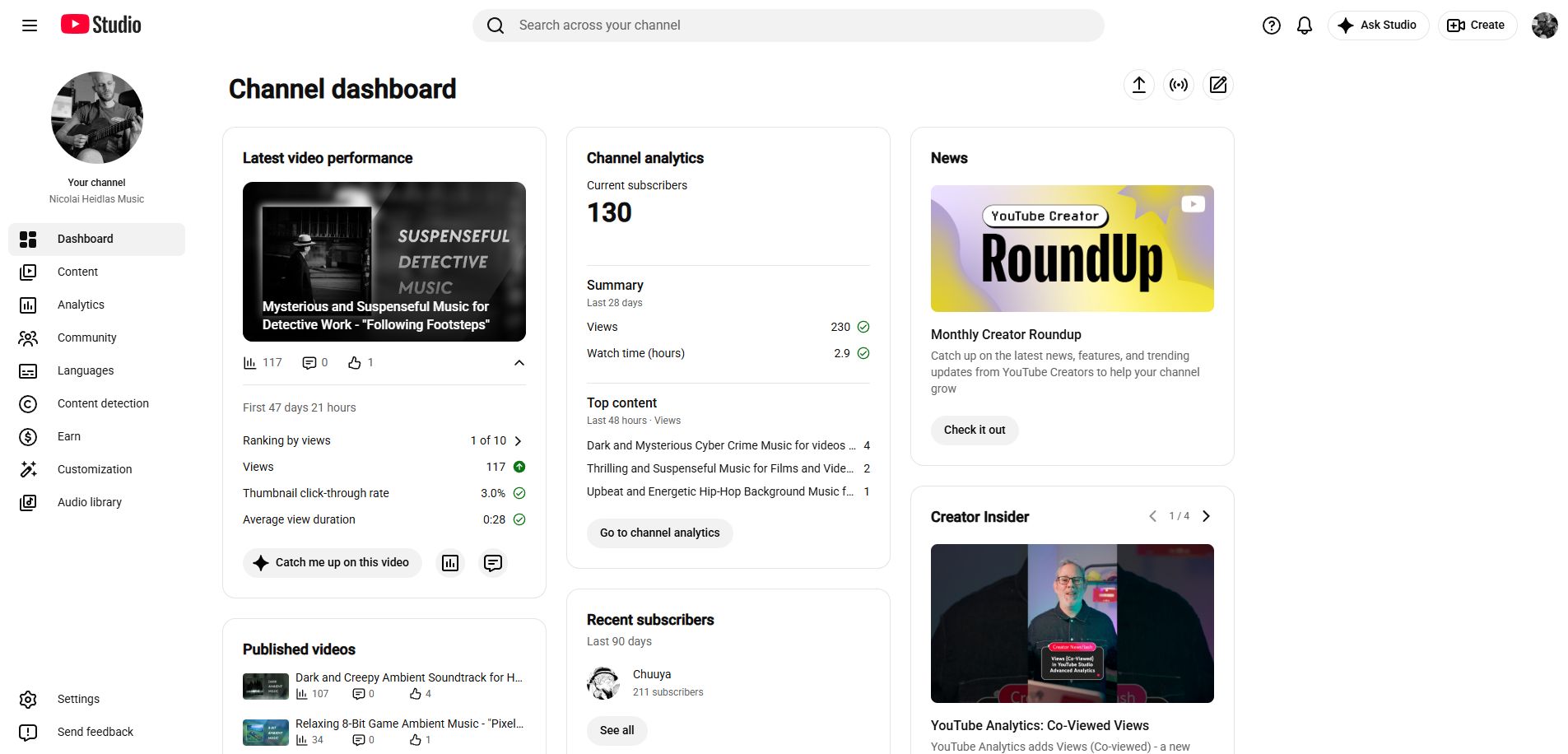
The Dashboard is designed to give you a quick overview of what's happening with your channel.
Instead of opening several different sections, you can use it as a starting point to see whether anything requires your attention.
Depending on your channel, the Dashboard may show cards related to things such as:
- Performance metrics of your latest video
- Recently published videos
- Your top performing videos
- Subscriber Counts
- Channel violations
- Latest posts
- Creator News and Insider Tips
The Dashboard gives you the big picture, but Studio also includes tools that can help you interpret your channel data and think about what to create next.
One of these is Ask Studio.
What Is Ask Studio?
Ask Studio is YouTube’s AI-driven chatbot which helps you come up with relevant video ideas or suggests improvements based on your channel’s performance metrics.
You can access Ask Studio by clicking the “Ask Studio” button at the top right of the screen in YouTube Studio.
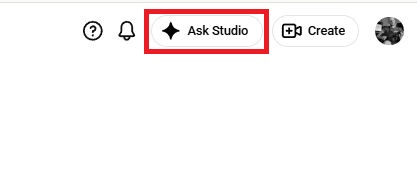
To grow your channel successfully, it is essential that you invest time in the videos which are relevant to your audience.
YouTube's newer workflow increasingly centers on Ask Studio for research and content idea brainstorming.
Instead of staring at a blank page and trying to invent a topic from scratch, you can use information about your existing channel and audience as a starting point.
You might ask:
- What topics are performing well on my channel?
Or:
- What questions are viewers repeatedly asking in my comments?
Or:
- What video ideas could build on my most successful recent upload?
Think of Ask Studio as a "YouTube-specific ChatGPT" with access to the finer details of your channel's performance data. It can serve as a creative assistant, but it's not a replacement for your own judgment. AI-generated suggestions can vary in quality and may sometimes be inaccurate.
Ask Studio can help you think about what to create, but eventually you need to turn those ideas into actual content.
The Content section is where you can manage your videos, shorts, playlists and more.
How to Manage Videos in YouTube Studio
The Content section is where much of your everyday YouTube work happens.
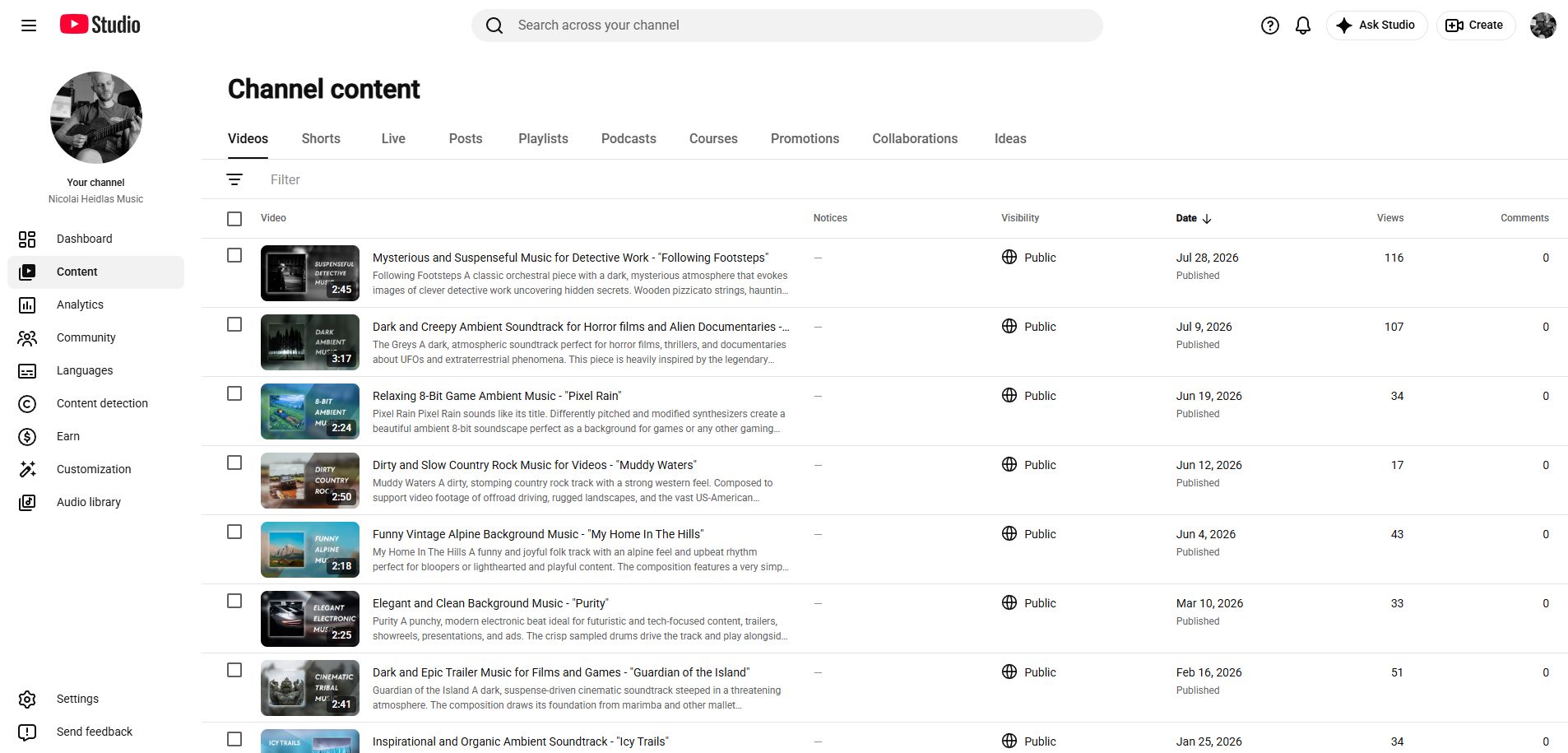
This is where you can view and manage your uploaded videos and other types of content.
To edit a video on your channel, simply hover over its thumbnail with your mouse and click the pencil icon that appears.
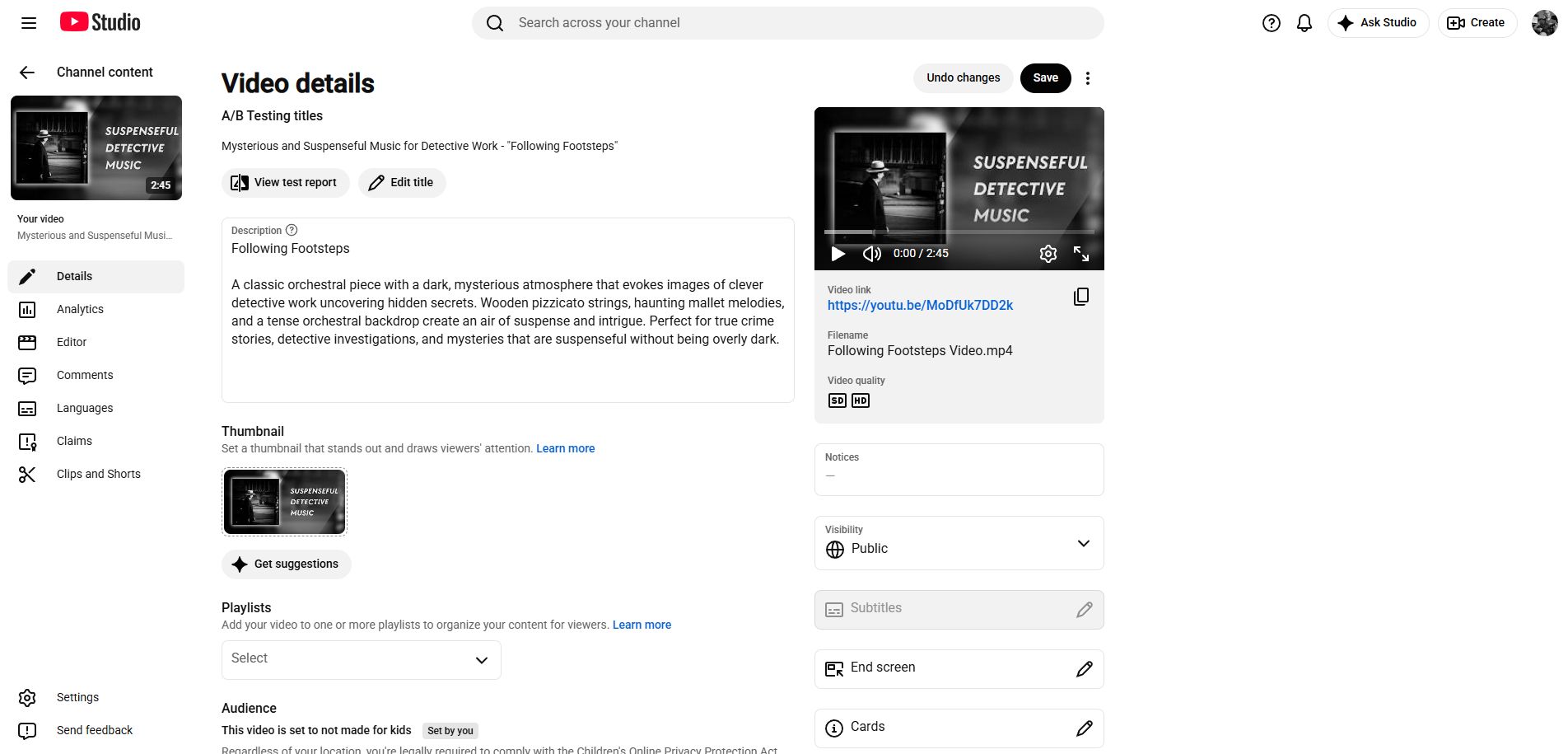
From here you can edit:
- Title
- Description
- Thumbnail
- Visibility
- Audience
- Age restrictions
- Subtitles
- End screens
- Cards
- Comments
- Video Category
- License and distribution
By clicking the checkbox in front of the videos’ thumbnail, YouTube also supports bulk editing, allowing you to make certain changes to several videos at once. This can be useful once your channel contains dozens or hundreds of videos.
Instead of opening 50 videos individually to change a particular setting, you may be able to apply a bulk action.
How to Create a YouTube Short?
To upload a YouTube Short, simply make sure your uploaded video:
- has a square or vertical aspect ratio.
- is less than 3 minutes in length.
When both requirements are given, your uploaded video will then automatically be listed as a YouTube Short.
How to Edit Videos in YouTube Studio
YouTube Studio includes a free video editor that lets you make adjustments to your uploaded YouTube videos. To access it, select a video from the Content tab and click the pencil icon, as described above. On the video editing screen, select “Editor” from the menu on the left:
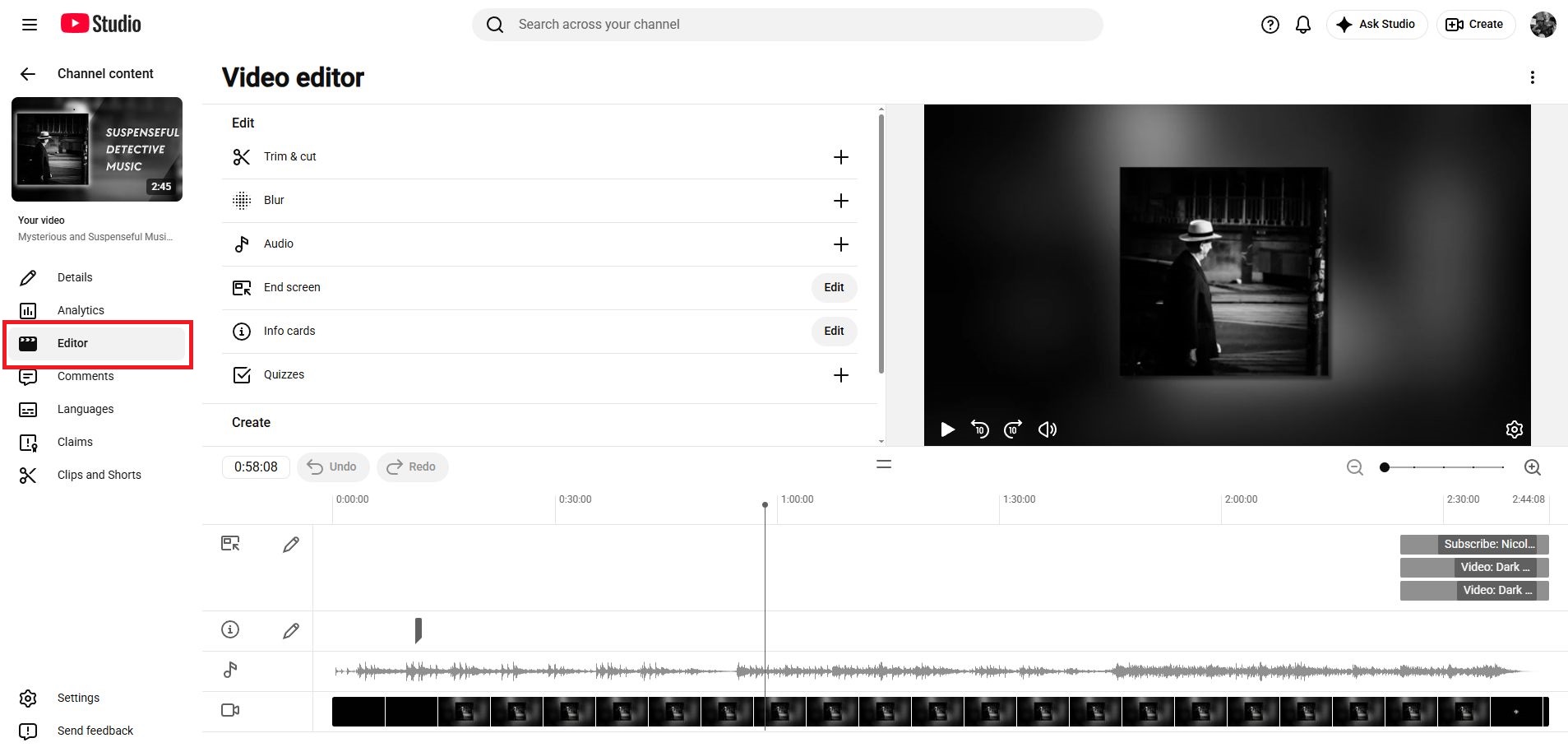
This video editor is mainly designed for basic adjustments such as
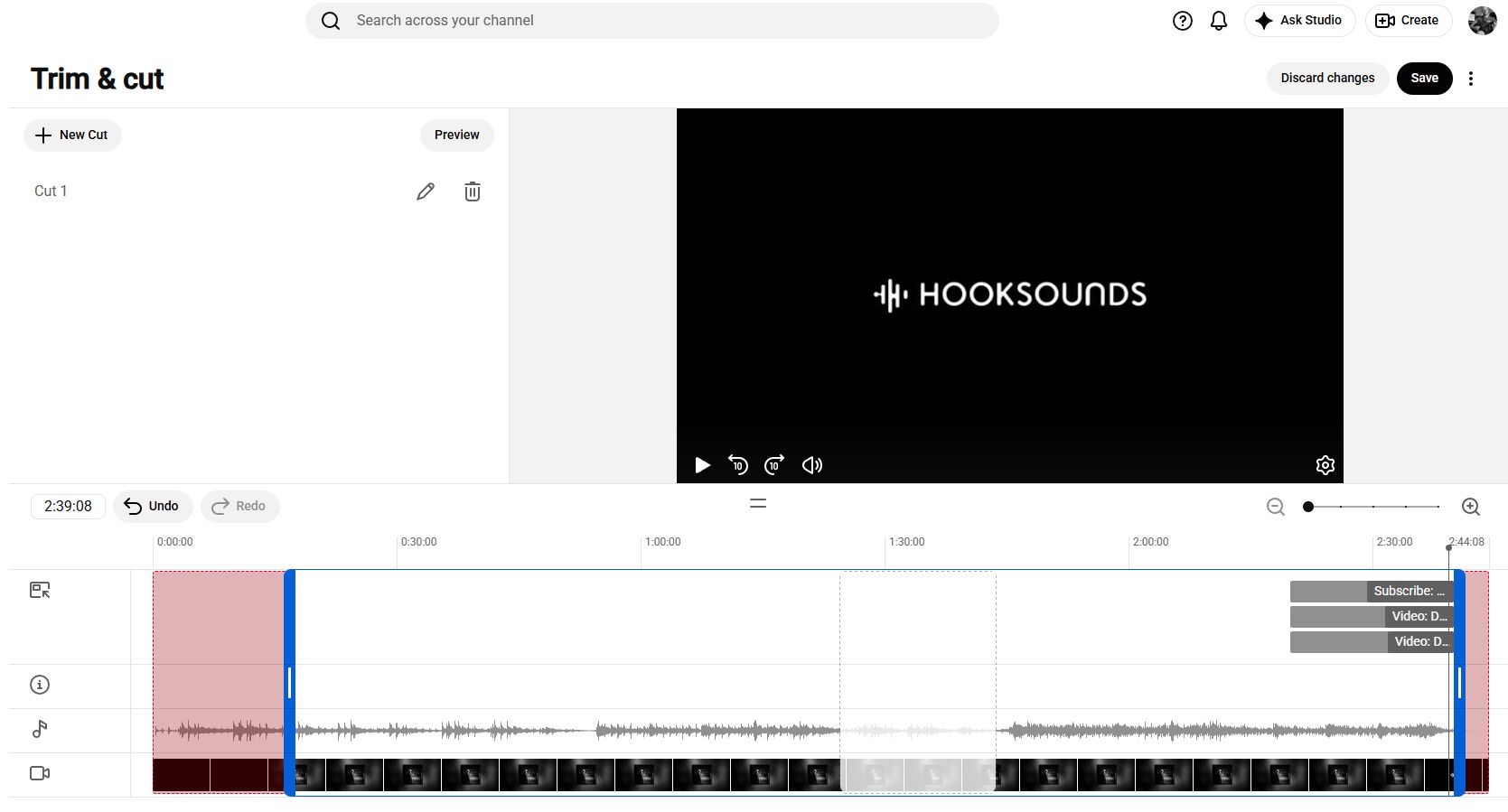
- Setting new start and end points of a video.
- Cutting out parts of a video.
- Adding/swapping music.
- Blurring faces (custom or with automatic face detection).
- Adding end screen, info cards and quizzes.
How to Add Music in YouTube Studio
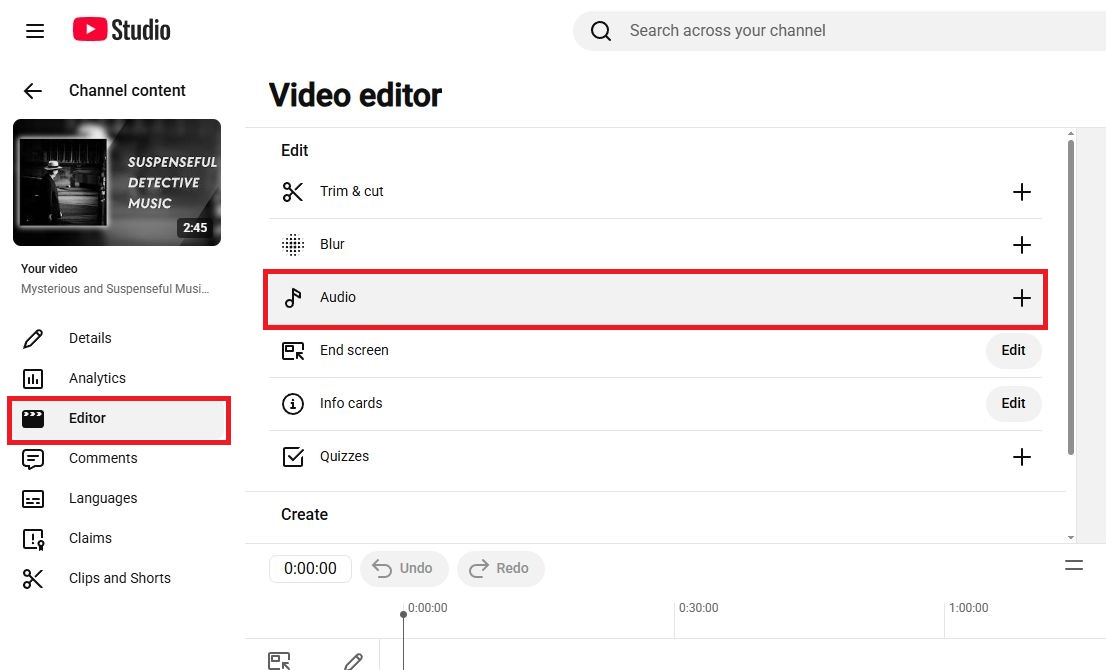
YouTube Studio has a built-in editor that allows you to add tracks from the YouTube Audio Library to an existing video.
To do this:
- Sign in to YouTube Studio.
- Select Content.
- Choose the video you want to edit.
- Select Editor (pencil Icon).
- Choose Audio.
- Browse or search the available tracks.
- Click Add next to the track you want.
- Adjust where the music starts and how much of the track is used.
- Save your changes.
Available tracks come from the Audio Library and can be used in monetized videos.
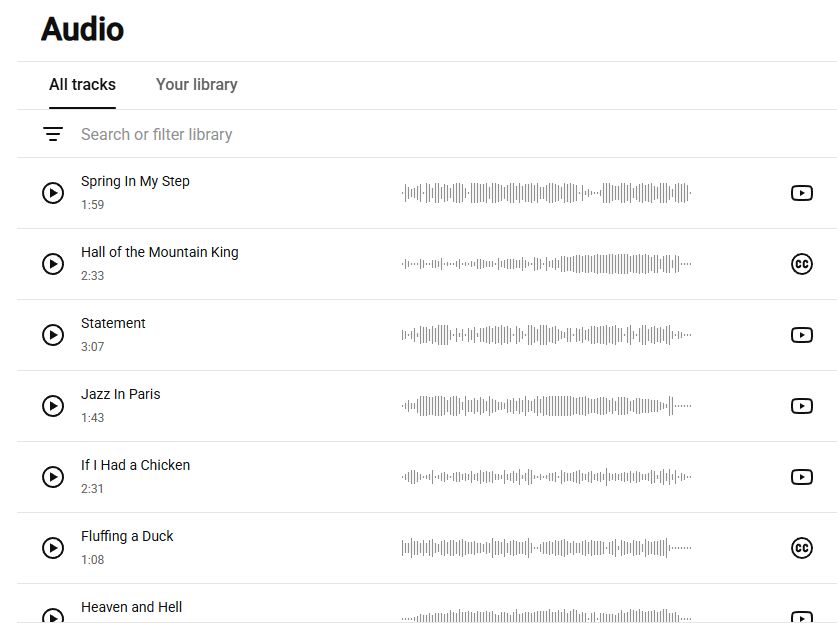
On the right side of the waveform, you can see the licensing type:
YouTube Button → This track can be used for free in any of your videos—even monetized ones.
“CC”-Button → You can use this track for free in any of your videos—even monetized ones, but you have to attribute the artist and song title in your video description.
Clicking the “+” button on the track, which appears when you hover with your mouse over the waveform, will add the music track in your video timeline below. You can then drag the music track to the place you want it to start.
The Cons of Using YouTube’s Audio library
While it’s great for quickly adding music, the YouTube Audio library has some restrictions which quickly will limit your creative options when it comes to creating original videos.
If you use music from the YouTube Audio Library, expect:
- Small music catalog
- Overused music
- no track variations and versions
- unclear licensing for publishing the video on other platforms.
You may want a larger catalog, more consistent music styles, different versions of tracks, and licensing designed specifically for content creators.
That's where a dedicated royalty-free music library can be useful.
The Best Alternative: Safe-To-Use Royalty-Free Music
If you're producing videos regularly, you want to make sure you're using a music source that won't create copyright issues and offers great music options for every style of video.
HookSounds offers a large catalog of professionally produced royalty-free music categorized into useful YouTube video categories, such as:
The music and sound effects are safe-to-use and designed to avoid copyright claims.
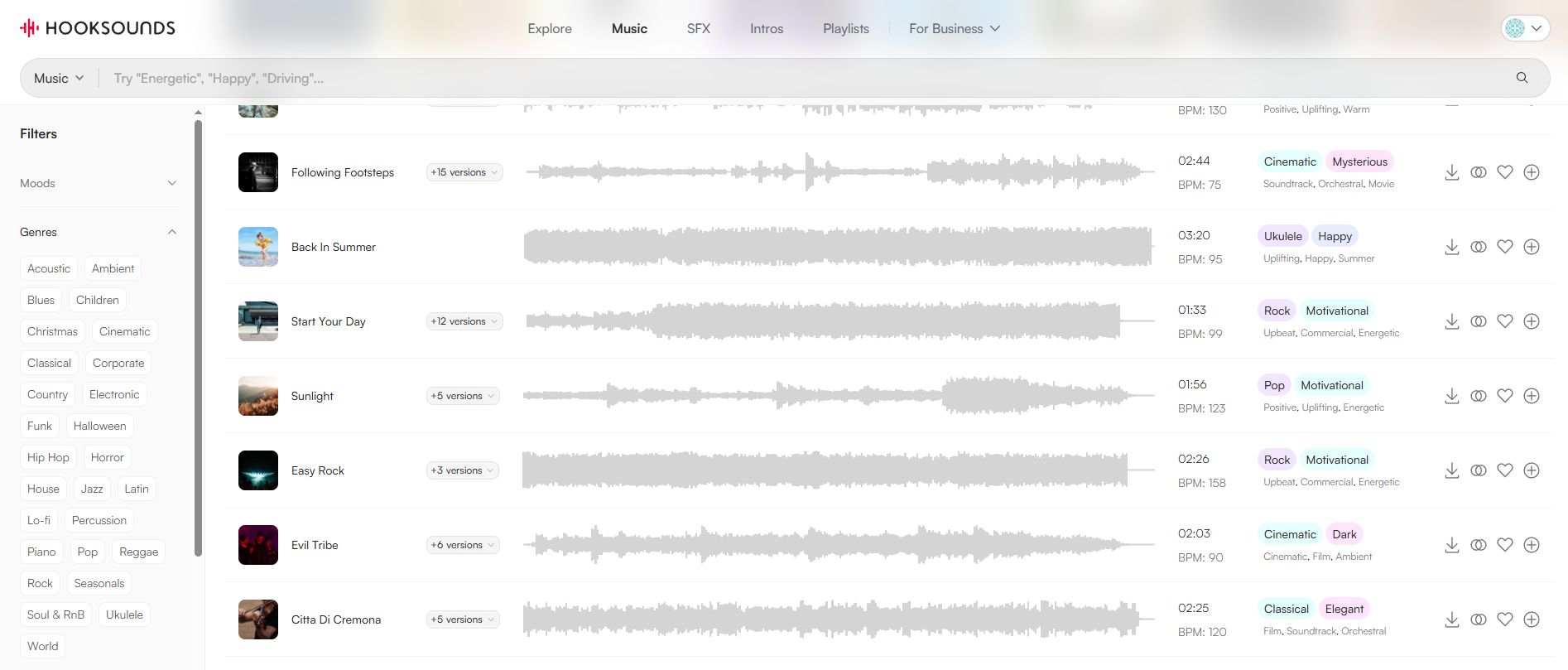
Instead of building your entire music workflow around the limited selection available inside YouTube, you can search for tracks based on the style, mood, pacing, and feel of your content.
A good soundtrack is an integral part of the most successful YouTube videos.
Listen to a few examples
Chill beats for vlogs and casual content


Epic cinematic trailers for sports, travel & adventure

Minimal background music for interviews and voiceovers

How to Manage Playlists in YouTube Studio
A well-organized playlist can make your channel significantly easier to navigate.
Let's say you run a photography channel. Instead of putting 80 videos into one giant content library, you could create playlists such as:
- Photography for Beginners
- Camera Settings Explained
- Lightroom Tutorials
- Portrait Photography
- Photography Gear Reviews
This makes it easier for your audience to find related content.
You can create and manage playlists directly in YouTube Studio by giving them a title, description, visibility setting, and video order.
How to Create a Playlist on YouTube
To create a new Playlist in YouTube Studio:
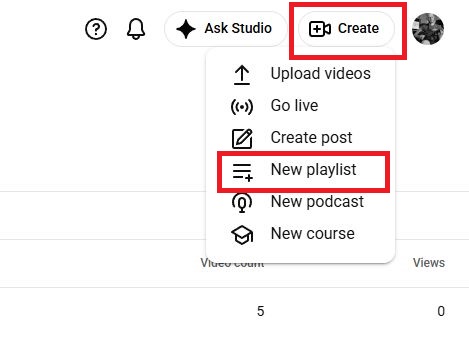
- Click on “+ Create” in the top right corner of the screen
- Click on “New Playlist”
- Give your playlist a title and description, select how the videos are ordered and ultimately select all the videos you want to include:
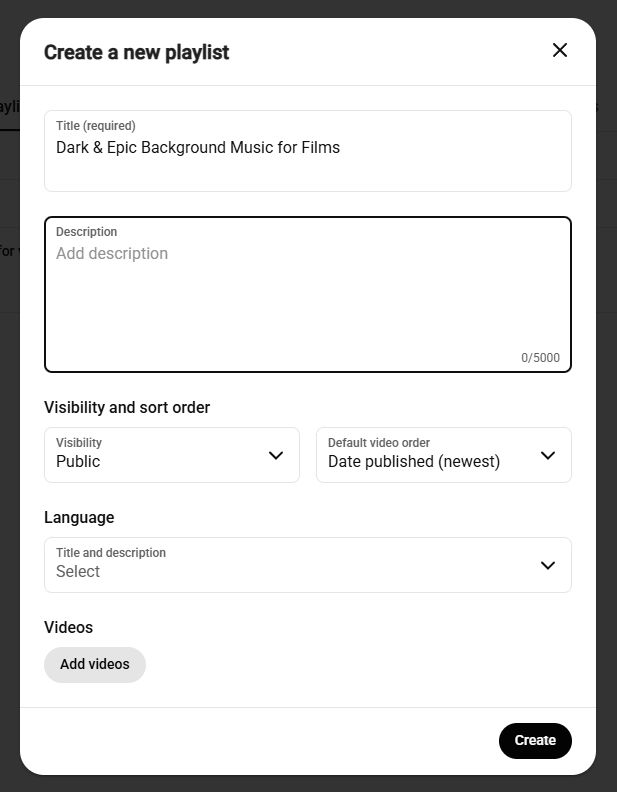
When you are done, click “Create” on the lower left corner of the pop-up window.
Your Playlist is now created and available for people to find on YouTube. Usually within 24 hours, your playlist will be indexed in the search results.
How to Edit a Playlist in YouTube Studio
You can edit your playlists in much the same way as you edit videos.
To edit a playlist in YouTube Studio:
- Click on the Content Tab.
- Select “Playlists”.
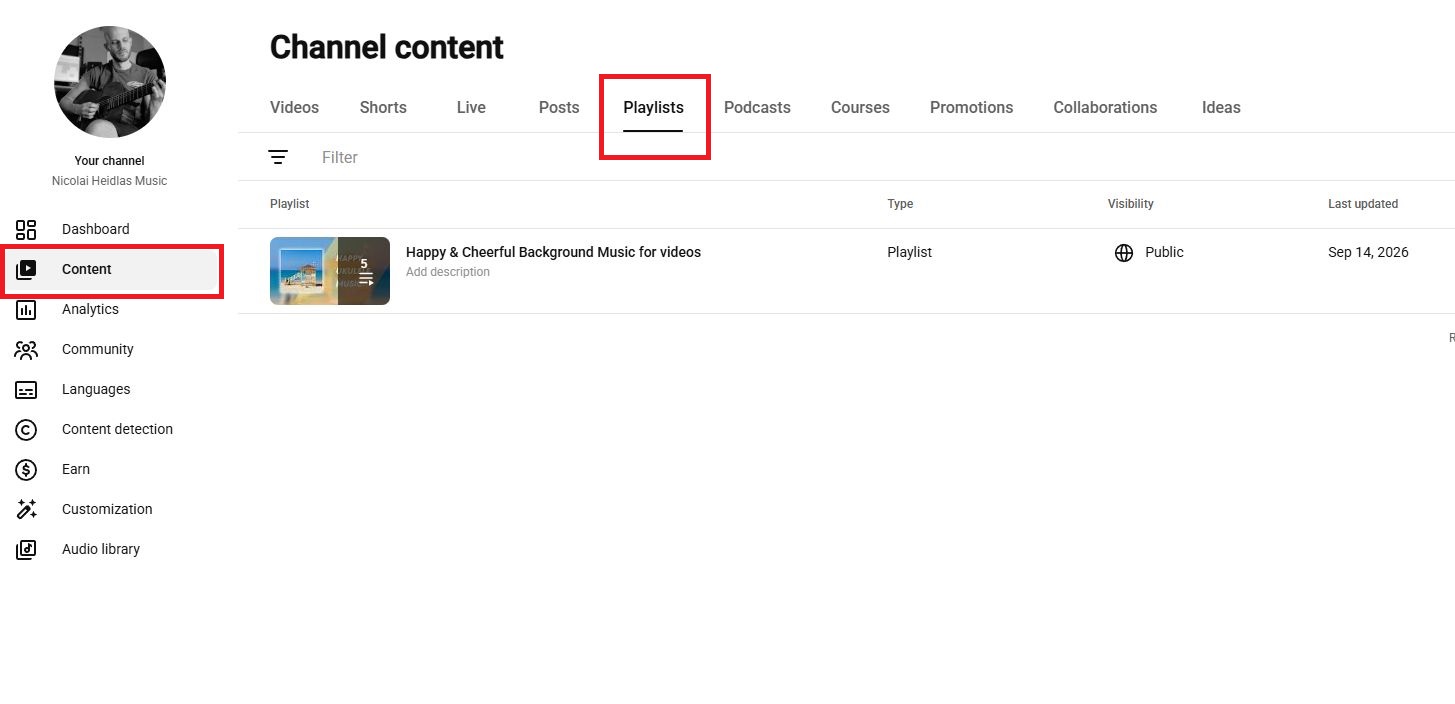
Clicking the pencil icon on the playlist will let you edit:
- The Playlist Title
- The Playlist description
- In which order the videos appear
- If the Playlist is publicly available, private (only for you), or unlisted (available to everyone with the Playlist URL)
So far, we've focused mainly on managing your content: editing videos, adding music, and organizing them into playlists. But managing your channel is only half the job. If you want to improve your content and make better decisions about what to create next, you need to understand how viewers respond to it.
That's where YouTube Analytics comes in.
How to Use YouTube Studio Analytics
Analytics is arguably the most valuable part of YouTube Studio, as it lets you examine channel and video performance.
These metrics help you understand where viewers are discovering your videos, whether they choose to watch, and how long they stay. By looking at these patterns, you can make more informed decisions about your future content.
The Analytics section can be broken down into 4 categories which give you insights on performance metrics across several aspects of your channel:
- Overview
- Content
- Audience
- Trends
Overview Tab
The Overview tab provides a high-level snapshot of your channel or an individual video.
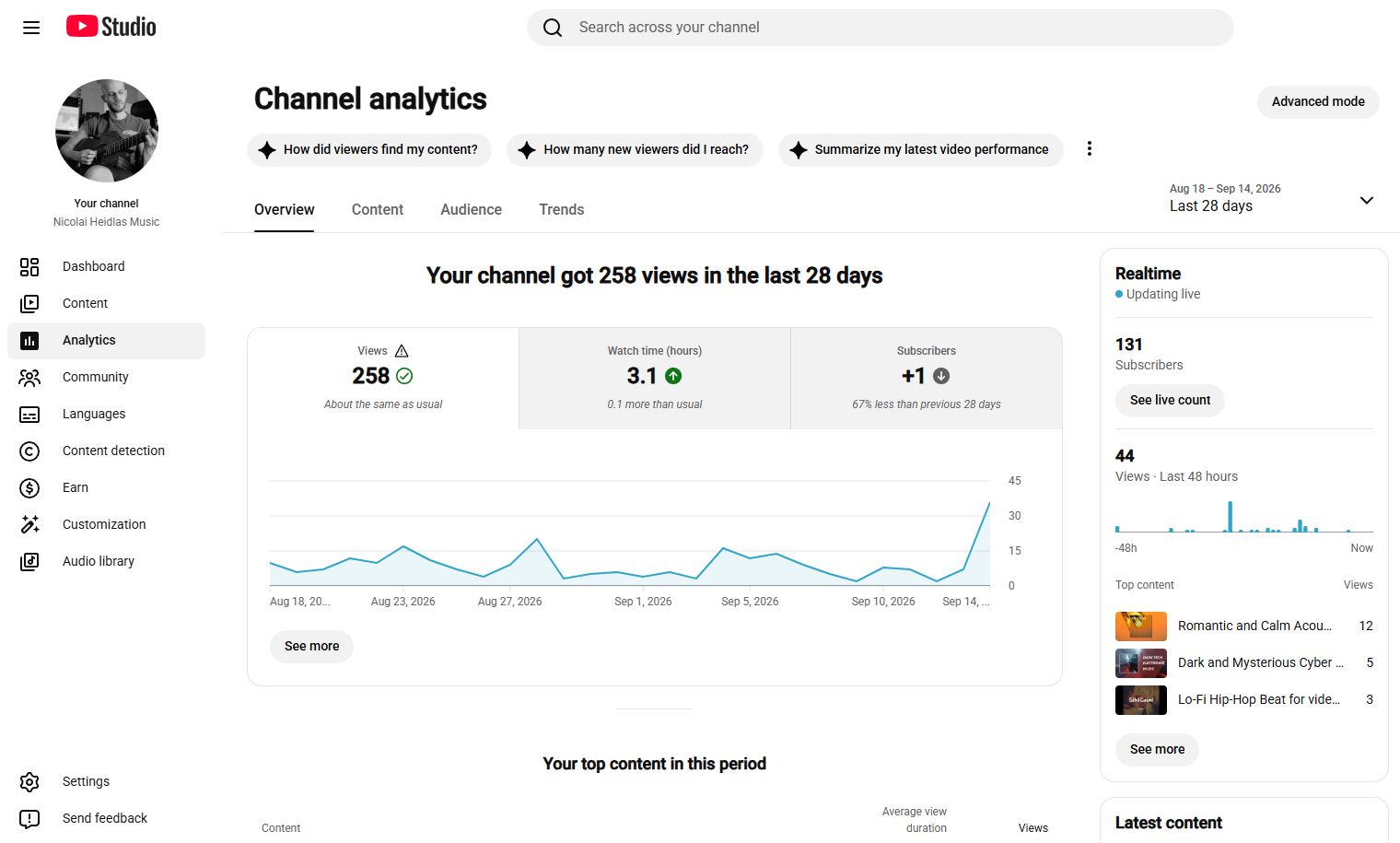
Here you’ll get an overview of the total number of views your videos have gotten, how long people watched your videos (”watch time”) and how your subscriber count changed in the selected period.
You can change the selected time-frame in the top right corner of the screen.
The Overview section can help you quickly understand whether your recent content is performing normally or differently from your typical results.
You’ll also find important metrics such as the watch time and views of your most successful videos (”top content”).
Content Tab
The Content section provides a broader view of how your audience finds and interacts with your videos, Shorts and posts.
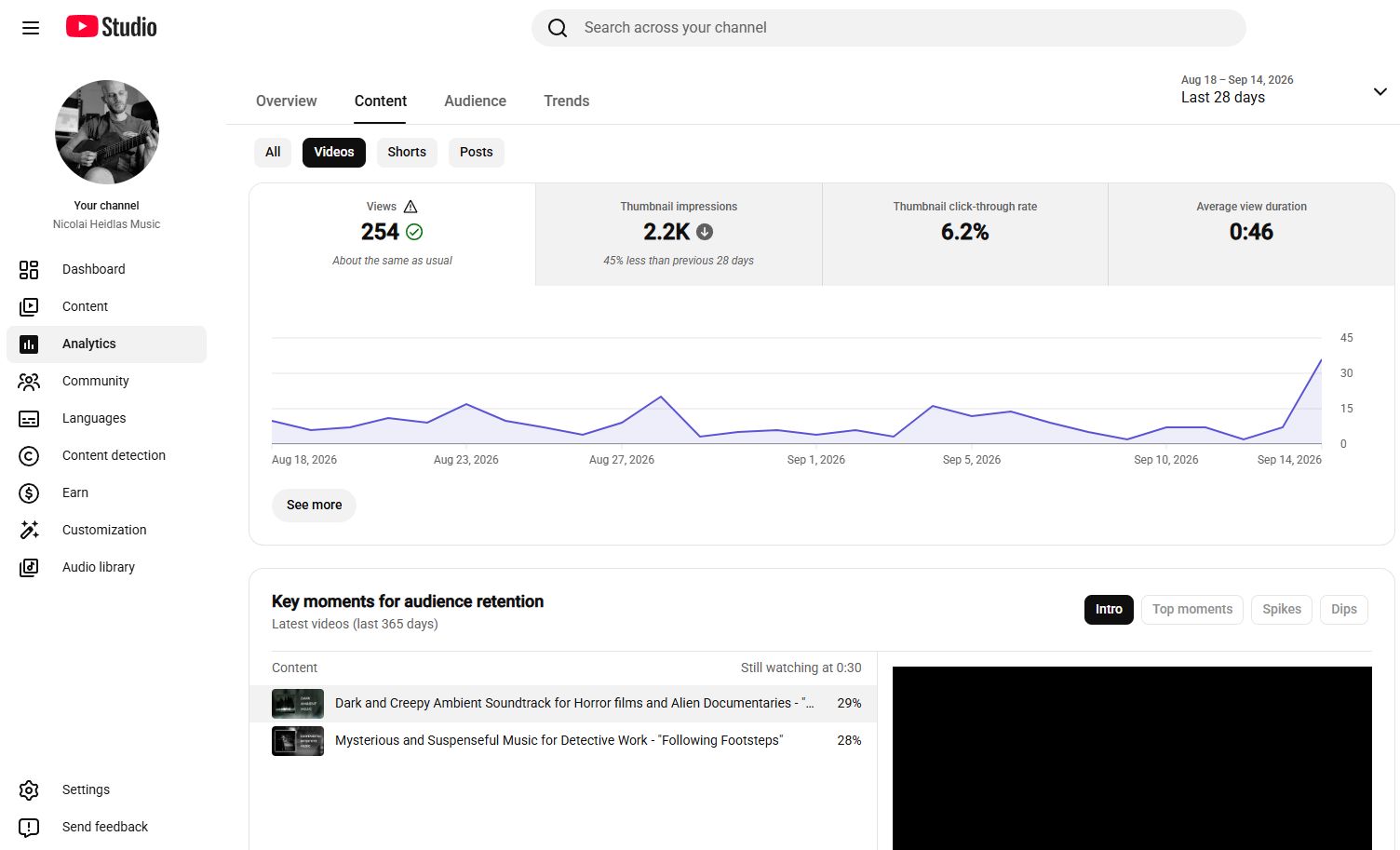
You can compare content formats and review performance across videos, Shorts, live streams, and other available content types.
One useful way to identify potential problems and get insights on what to improve is by combining and understanding the relationship between these 4 important metrics:
- Views
- Thumbnail impressions
- Thumbnail Click-Through Rate (CTR)
- Average View Duration
1. Views
The view count shows the number of legitimate views your content has received. Since August 24, 2026, YouTube counts a view when a video starts to play across Shorts, long-form videos, and live streams.
But this number alone does not tell you if the decisions you have made for this video were right. It’s always a combination of views and other metrics.
2. Thumbnail Impressions
Impressions tell you how often YouTube shows your video thumbnail to viewers on YouTube, excluding external sources.
Every time a viewer is shown your thumbnail in search results, in the feed, in playlists or in the “Up Next”-column next to a video player, it counts as one impression.
For an impression to be counted, the following requirements must be met:
- At least 50% of the thumbnail must be visible on the viewer’s screen.
- The thumbnail must remain visible for more than 1 second.
This metric is particularly useful because it gives you insight into how often YouTube is presenting your video to potential viewers and how many opportunities users have to discover it.
If the video appears in the search results but the user does not actually see it on the viewer's screen, it will not count as an impression.
3. Click-Through Rate (CTR)
Click-through rate tells you how often users who saw your thumbnail (impression) clicked your video.
Examples:
Your video had 100 impressions and 10 clicks. Your CTR would be 10%.
In simple terms:
Your thumbnail and title got someone to click.
What counts as a ‘good’ CTR depends on the traffic source.
Viewers are looking for an exact answer or specific music/topic. Those high-intent queries often produce higher CTRs. If your video topic is pretty broad, it usually has to cut through a lot of competing videos, which can result in lower CTRs.
CTR can give you an indication of how appealing your video's title and thumbnail are.
To give you a good orientation point:
Half of the channels on YouTube have a CTR of 2%-10%.
That means, if your CTR is greater than 8% you are already in a very good position.
4. Average View Duration (Engagement)
Average view duration tells you approximately how long viewers watched your video on average.
This is important because getting someone to click is only half the job. You also want them to stay.
If your video is 10 minutes long but viewers leave after the first 20 seconds, then it might be an indication that:
- The title and thumbnail are misleading and does not match the video content.
- You do not get to the point quickly enough to hold the viewer’s attention.
- Viewers arriving from Home or Suggested videos may be browsing casually and may leave more quickly.
What the Metrics Tell You
The real value of YouTube Analytics becomes apparent when you start combining different metrics.
Just as a doctor combines blood test results, symptoms, and lifestyle factors to arrive at a diagnosis, you can combine your YouTube metrics to identify potential problems and determine what you should improve.
Here are some useful combinations of metrics that can help you identify where a problem might lie and what you can do to improve:
High impressions + low CTR
→ Your video is being shown, but the title or thumbnail may not be convincing enough to generate clicks.
High Views or CTR + low average view duration
→ Your packaging may be promising something the actual video doesn't deliver or your intro is longer than the initial attention span of the viewer. Try to get to the point more quickly and make sure your title and thumbnail match your video content.
Low impressions + high average view duration
→ People who find your video may like it, but YouTube may not be showing it to a large audience yet. This could mean that your topic is not searched for very often because it is too specific, or that your title or thumbnail is too complex and therefore not engaging enough.
High views + low average view duration
→ Regardless of the CTR, the video attracts attention with a good thumbnail and title but struggles to hold viewers’ attention. Focus on making the video engaging right from the start and stay true to the topic you are announcing with title and thumbnail.
Moderate views + high average view duration + strong subscriber growth
→ The video may be reaching a smaller audience but is doing an excellent job of converting viewers into fans.
Audience Tab
The Audience tab is about the people watching your videos.
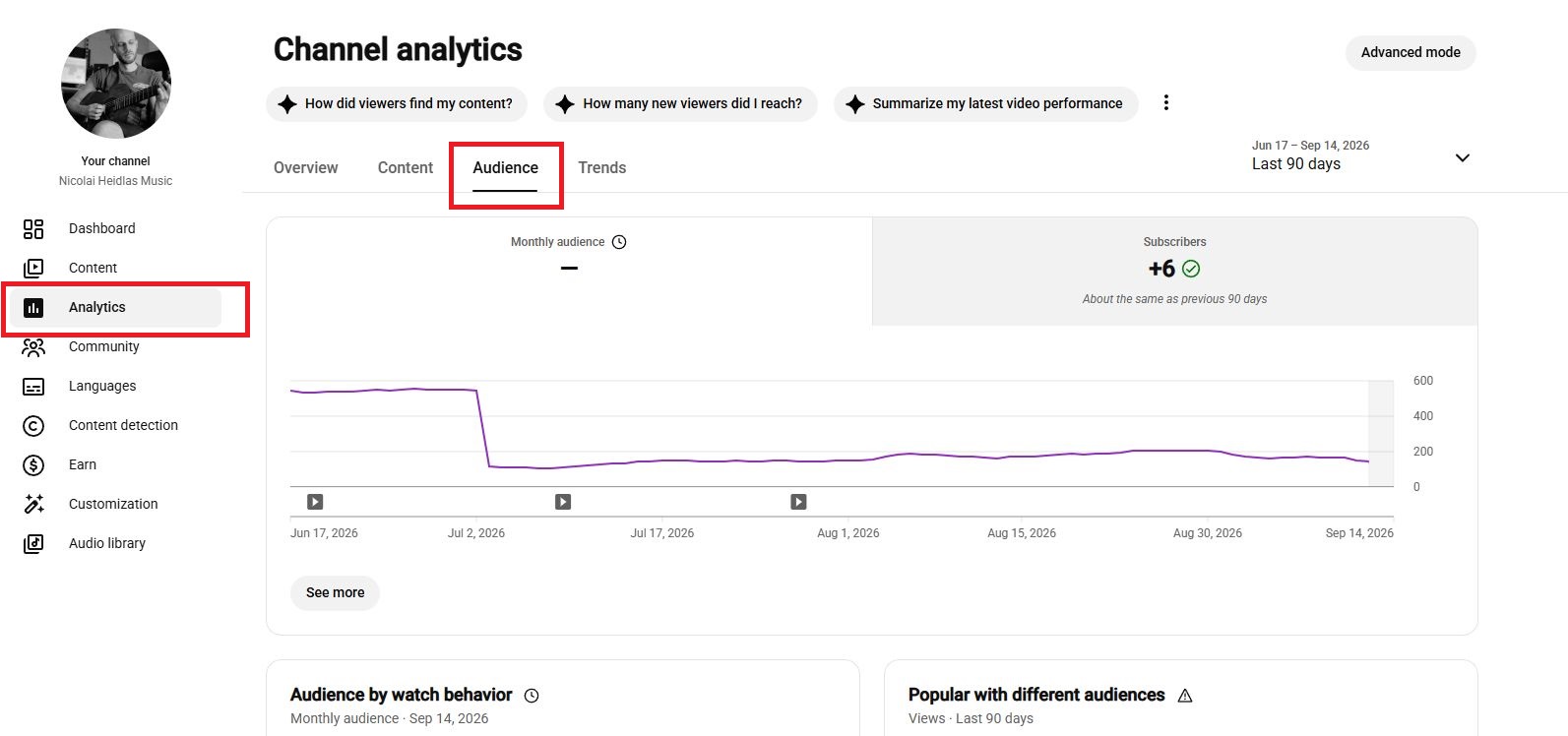
You can find information such as audience size, age and gender, how many new subscribers you got, and viewer groups including new, casual, and regular viewers.
The most important information on this page shows you which videos are more popular among viewers who are completely new, casual watchers and viewers who regularly watch your videos.
For instance, if new viewers find your channel through a specific video topic, you can make sure that the next time you create a video on that topic, it is optimized to encourage new viewers to engage with your channel and subscribe.
You’ll also find information on which other channels your audience watches more often. Check out those channels and let them inspire you to come up with new topics you can cover on your own channel. This is a strategic way to better understand and meet your viewers’ expectations.
Trends Tab
The Trends tab is one of the most interesting tools for planning future content, as it helps you explore what your audience and other viewers on YouTube are searching for.
You can search for topics, save searches, see popular searches, explore breakout videos, and identify content gaps. This makes Trends particularly useful when you know your niche but aren't sure what to publish next.
For example, if you are running a fitness channel, instead of simply creating another generic workout video, you could search for a specific topic and examine:
- What people are searching for
- Which related videos are performing
- Whether viewers appear interested in the topic
- Whether there are content gaps
- What Shorts opportunities exist
YouTube can provide ideas for filling current content gaps and show you the search volume for relevant keywords related to your channel.
How to Manage Comments in YouTube Studio
Comments can be a valuable source of information. Your audience can tell you what they liked, what confused them, what they want you to explain next, and what questions you haven't answered.
YouTube Studio gives you tools for reviewing and managing comments, single or in bulk.
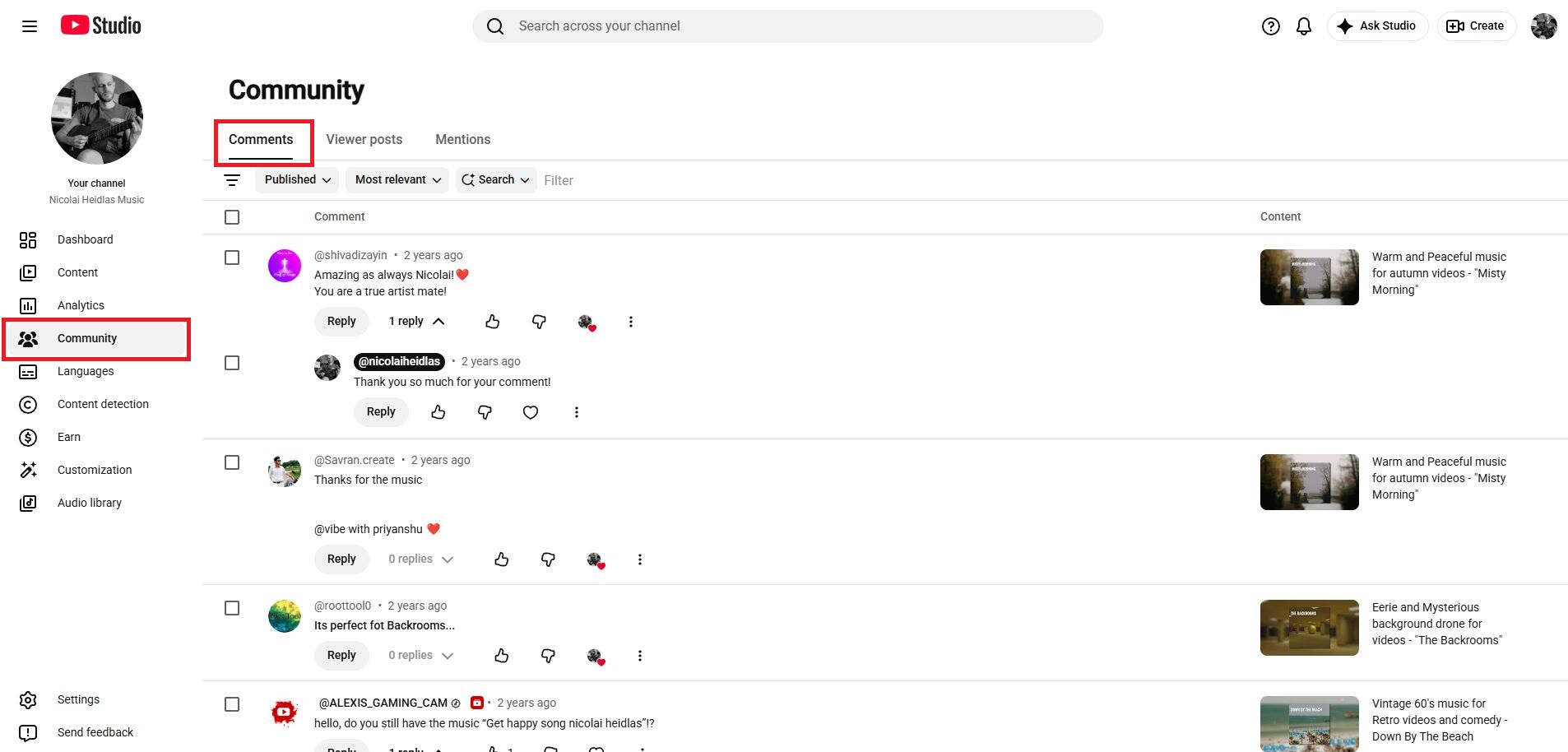
In the Community tab, you can review published comments and comments that have been held based on your moderation settings or identified as likely spam. You can also filter comments by different criteria.
Clicking “Reply” lets you respond directly to that comment. The original commenter will be notified when you reply.
Here you can:
- Reply to comments
- Approve held comments
- Like comments
- Hide all comments from a particular user
- Remove or report comments
- Search and Filter comments
Manage Copyright and Content ID Claims in YouTube Studio
You can manage copyright and Content ID claims in YouTube Studio under the “Content Detection” tab.
YouTube automatically scans uploaded videos against reference material submitted through its Content ID system. When a match is identified, a Content ID claim may be created, depending on the rights holder’s policies.
All your current claims will appear here.
A Content ID claim can result in different actions. Depending on the copyright owner’s policy, the video may be:
- Monetized by the rights holder
- Tracked
- Blocked
Copyright claims can be frustrating and, depending on the circumstances, can have consequences for your video.
In our article, we take an in-depth look at how copyright works on YouTube and explain how choosing the right music can help you avoid copyright claims.
How to Monetize Videos on YouTube
YouTube monetization is managed through the Earn area of YouTube Studio.
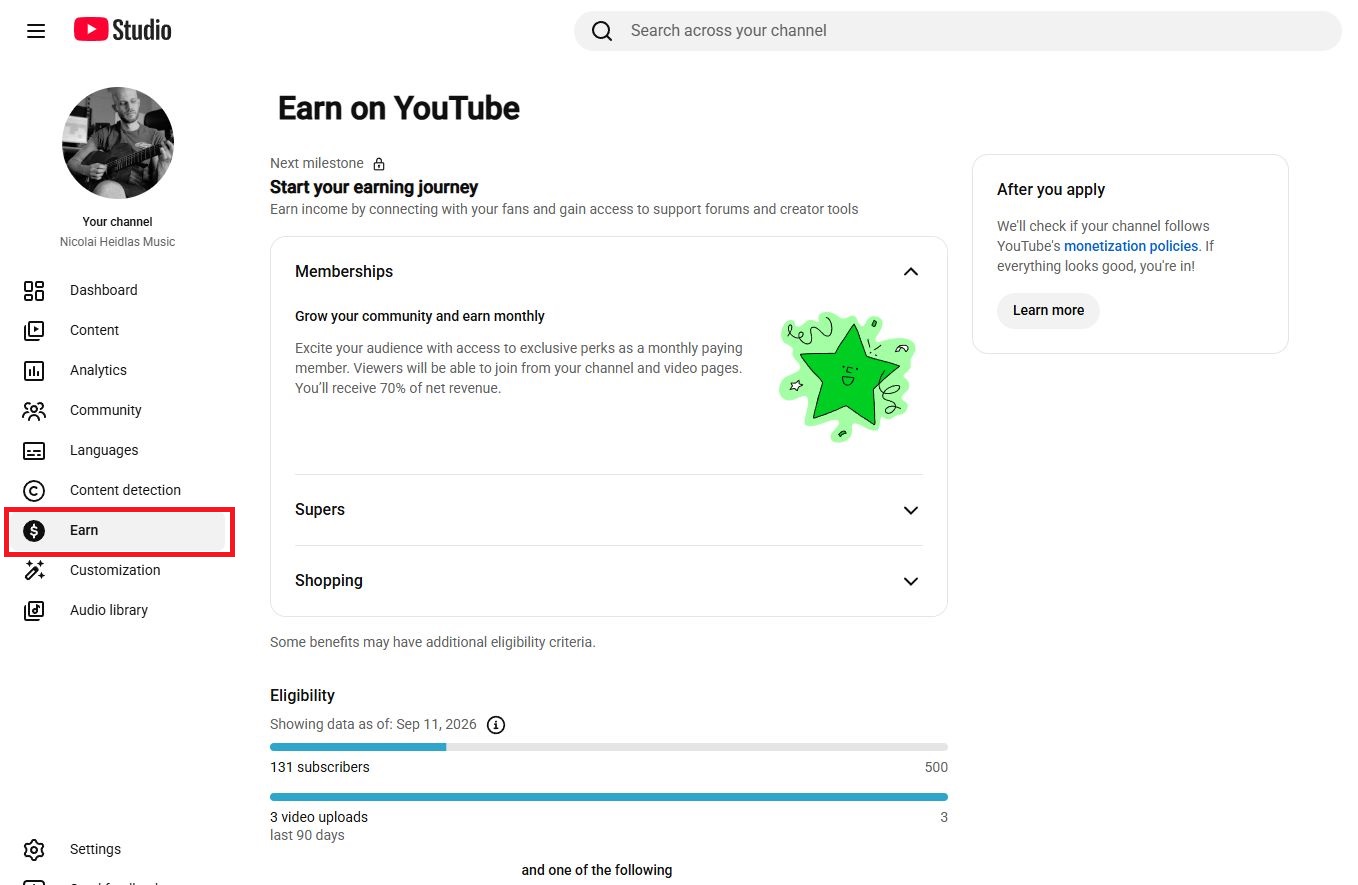
To monetize your YouTube channel you need to meet certain requirements. However, for small channels it can be a challenge to achieve those thresholds.
YouTube offers different monetization tiers. This allows eligible smaller channels to access certain monetization features before they qualify for ad revenue.
At the lowest monetization level, eligible creators can access features such as memberships, Super Chat, Super Stickers, Super Thanks, and Shopping.
A higher threshold unlocks additional monetization opportunities, including advertising and YouTube Premium revenue.
Check our other article in the YouTube series, where we show you in great detail how you can monetize your YouTube videos, how much you can earn with YouTube and which exact requirements you have to meet.
How to Customize a YouTube Channel in YouTube Studio
YouTube Studio's Customization section lets you manage the way your channel appears to viewers.
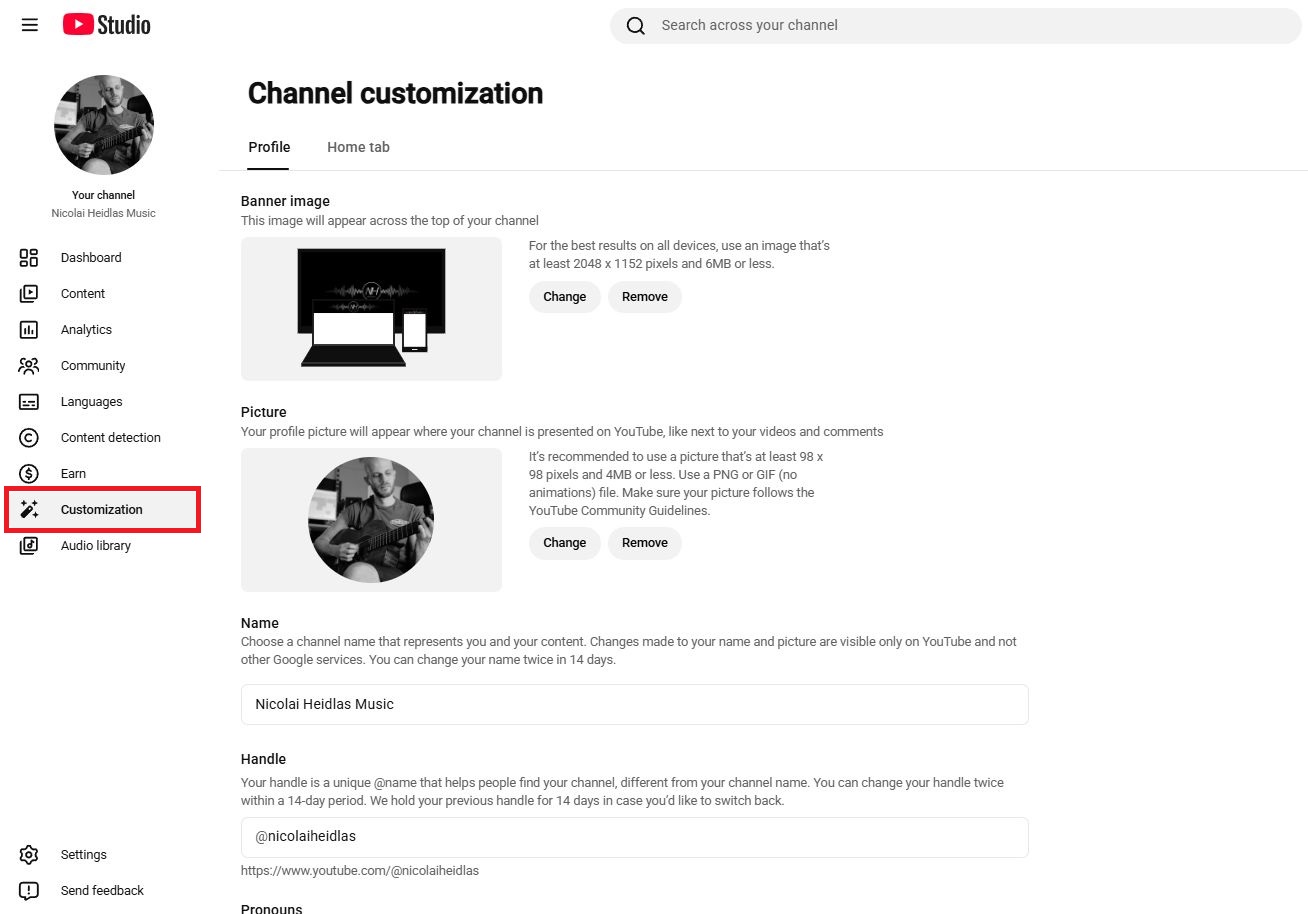
YouTube currently divides channel customization into two areas:
Profile section
Here you can set and change your profile picture, channel banner, channel name, YouTube handle, channel description, contact info, websites and your watermark which appears on the lower right corner of your videos.
Home tab
On the Home Tab, you can change how your YouTube Channel page appears to visitors. You can drag the sections to define the layout of your channel’s content.
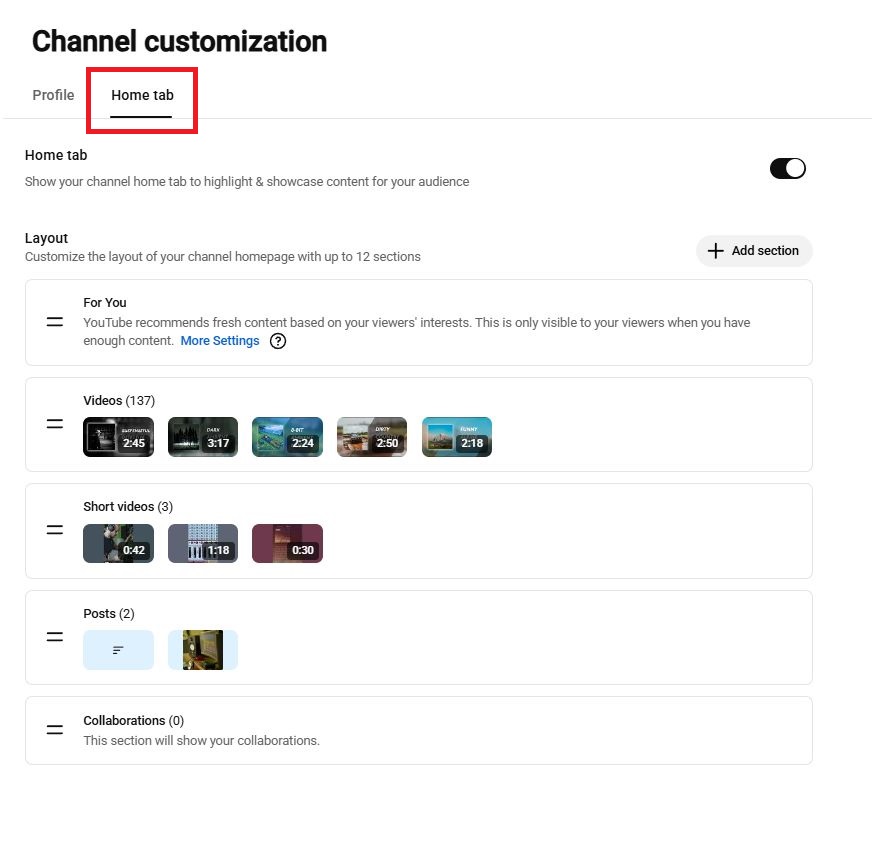
After you are done, make sure to hit “Publish” on the top right corner of the screen. This will save the changes and apply them to your channel.
What Is a YouTube Handle?
A YouTube handle is a unique identifier for your channel. Handles make it easier for people to identify, mention, and find your channel instead of using a long, complex URL.
You can manage your YouTube handle through Customization → Profile in YouTube Studio. It begins with the @ symbol and forms part of your channel's handle URL.
For example: youtube.com/@YourChannel
YouTube also allows creators to change their handle, although there are limits on how often this can be done.
Our tip: Choose a handle that is catchy, easy to remember and closely associated with your channel.
How to Add Links to a YouTube Channel
You can add links to your YouTube channel in the Customization tab in YouTube Studio. Click on “+ Add link”, give it a title and enter the URL where you want your visitors to land.
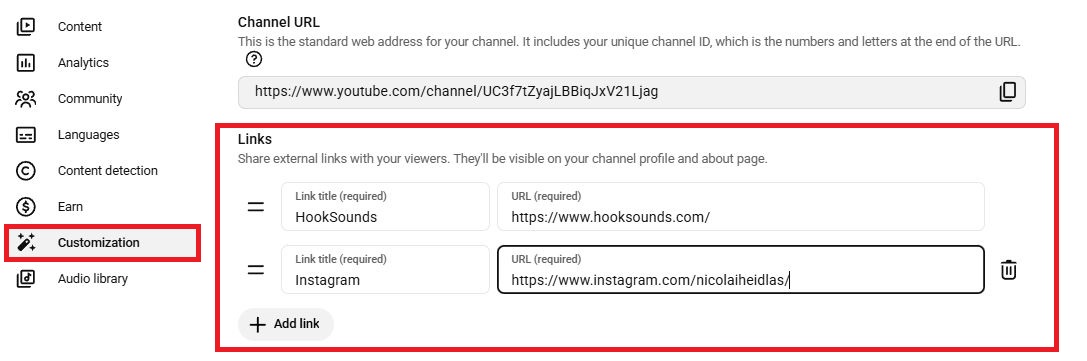
Most YouTubers use this to mention the places where their audience can find them as well, for instance:
- Your website
- Online store
- Newsletter
- Your Instagram / Facebook / Twitch Channel
- Course
- Business contact page
This is how links will appear on your YouTube channel:
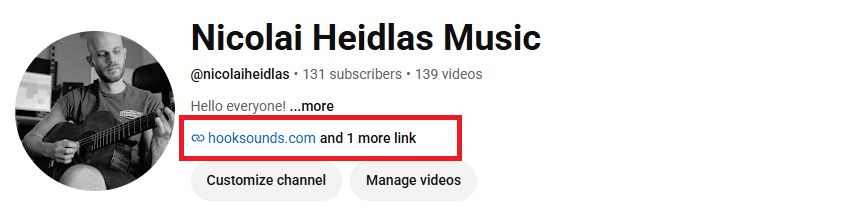
Always make sure the link is correct and free of typos. After adding the link, double-check it to ensure it works properly.
How to Add a Watermark on YouTube?
You can add, change or remove your watermark on YouTube in the Customization Tab in YouTube Studio as well. You can also select when it shows up on your video:
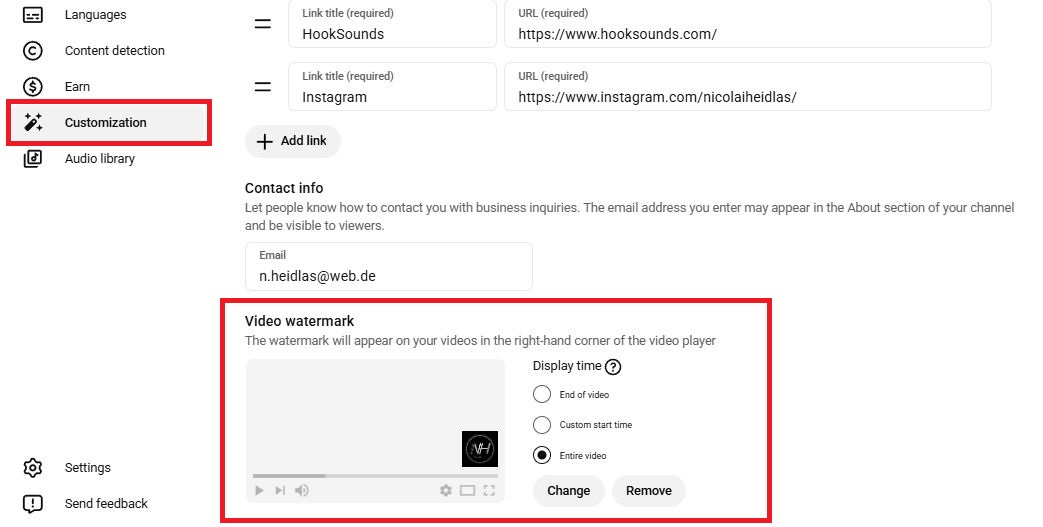
Watermarks are used to reinforce your brand and provide another way for viewers to interact with your channel. Clicking this watermark takes viewers to your channel page.
As part of your channel branding, a video watermark is a small element that appears in the lower right corner of your videos:
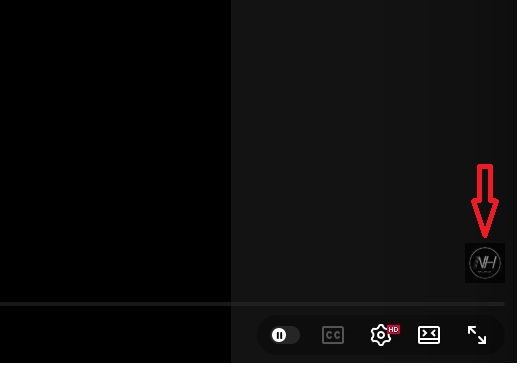
Since watermarks are very small, make sure elements are big enough so viewers can see them. A simple channel logo is a great choice.
How to Optimize Your YouTube Videos Using YouTube Studio
Making YouTube Studio part of your strategy is a good idea because it allows you to focus your efforts in the right places. Once you've published several videos, you have access to extremely valuable data that you can use to inform your next decisions.
As mentioned above, four important metrics to monitor are:
- Views
- Impressions
- Thumbnail Click-Through Rate
- Average View Duration
There is no such thing as a magic thumbnail, title, or video style that will automatically improve these metrics. However, there are several concepts that have repeatedly proven to work.
Video titles
- Make the value clear Tell viewers what they can expect to get from the video. A clear benefit or outcome can make a title more compelling.
- Create curiosity without being misleading Give viewers a reason to want to know more, but make sure the video delivers on the promise of the title.
- Keep it focused and easy to understand Avoid unnecessary words or overly complicated phrasing. Viewers should be able to understand the topic at a glance.
- Study what works in your niche Look at the titles of successful videos covering similar topics. Identify patterns in how they communicate the topic, benefit, or curiosity gap—and experiment with your own variations.
Thumbnails
- Make the main idea instantly recognizable A viewer should be able to understand what the thumbnail is about within a second or two, even at a small size.
- Keep it simple Avoid cramming too many elements, images, or words into the thumbnail. A clear visual hierarchy can make the main message easier to recognize.
- Use text sparingly If you use text, keep it short and make sure it complements the title rather than simply repeating it.
- Look for patterns in your best performers Compare the thumbnails of your most successful videos. Look at their composition, imagery, text, and overall visual approach, then test similar concepts in future videos.
Video style
- Hook viewers early Get to the point quickly and give viewers a reason to keep watching. Avoid spending too much time on lengthy introductions before delivering the video's main value.
- Match the format to the topic Different subjects work better with different approaches. Tutorials, reviews, storytelling, interviews, and educational videos can each benefit from their own structure and pacing.
- Keep the pacing engaging Remove unnecessary pauses, repetition, and sections that don't contribute to the video's purpose. The goal isn't necessarily to make every video fast-paced, but to keep it moving.
- Study your audience retention Look for moments where viewers tend to leave or where retention increases. These patterns can give you clues about which parts of your format are working and which parts may need adjustment.
Optimizing your YouTube videos has less to do with planning. It is a very practical approach.
Take your thumbnail and video title and adjust them. Try out different variations using our tips above and see if this improves the numbers.
Then wait around 2–4 weeks.
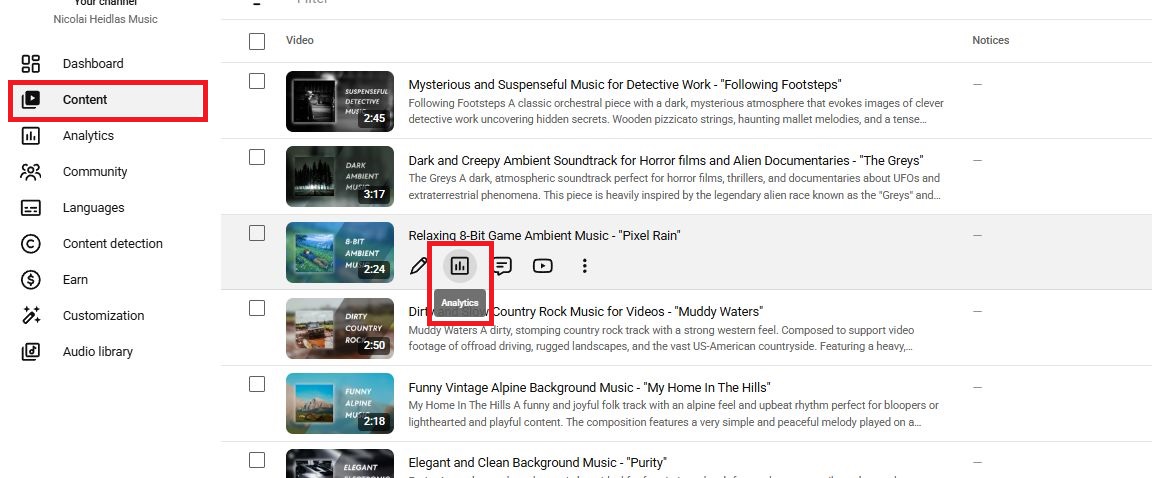
You can measure the impact of your changes for individual videos in YouTube Studio’s “Content Tab”.
Hover over the video with your mouse and select the “Analytics” icon this time.
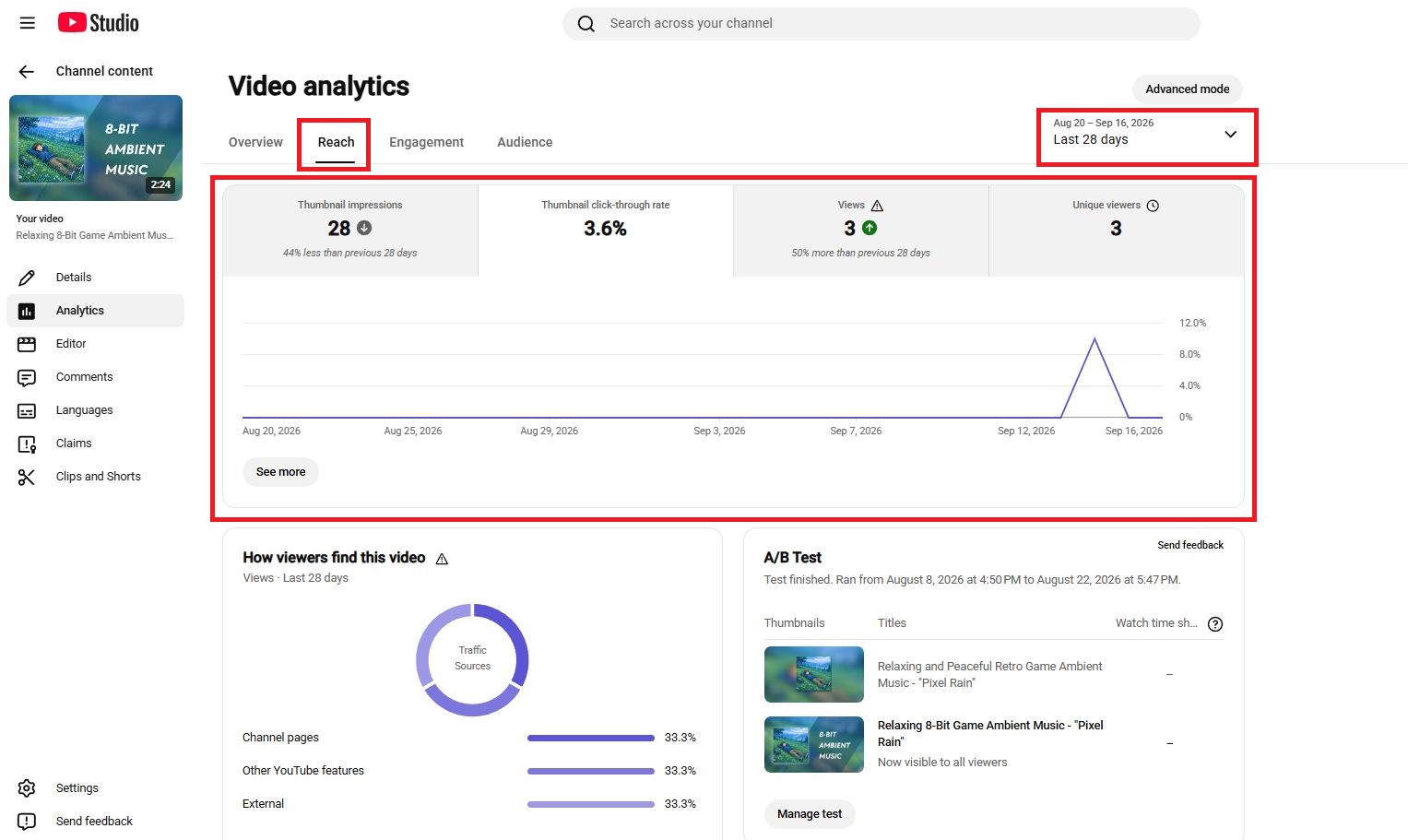
You’ll see a video-specific analytics page. To see the important metrics, click on “Reach” and select the period which covers around two weeks before and two weeks after the change using the top right date-range selector.
How to A/B Test Thumbnails and Titles on YouTube
YouTube Studio allows you to test different thumbnails and titles to see which combination performs better.
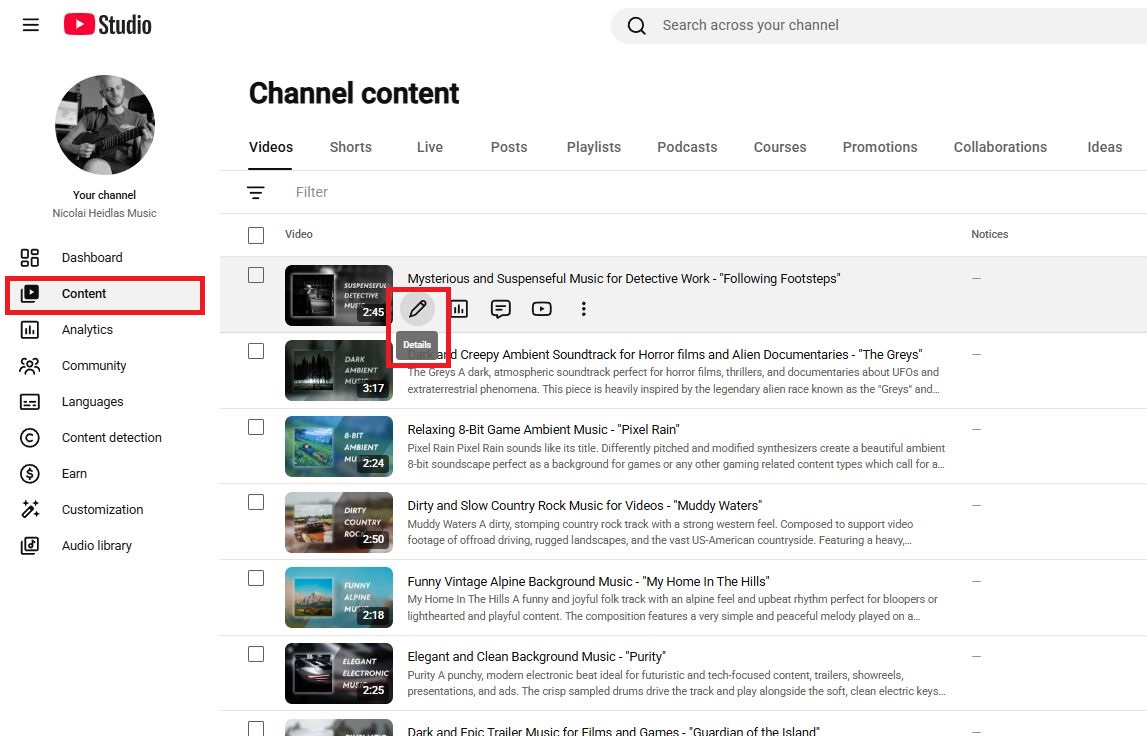
1. Go to YouTube Studio and open the Content section.
2. Select the video you want to run an A/B test on and click the pencil icon to go to the video’s edit page.
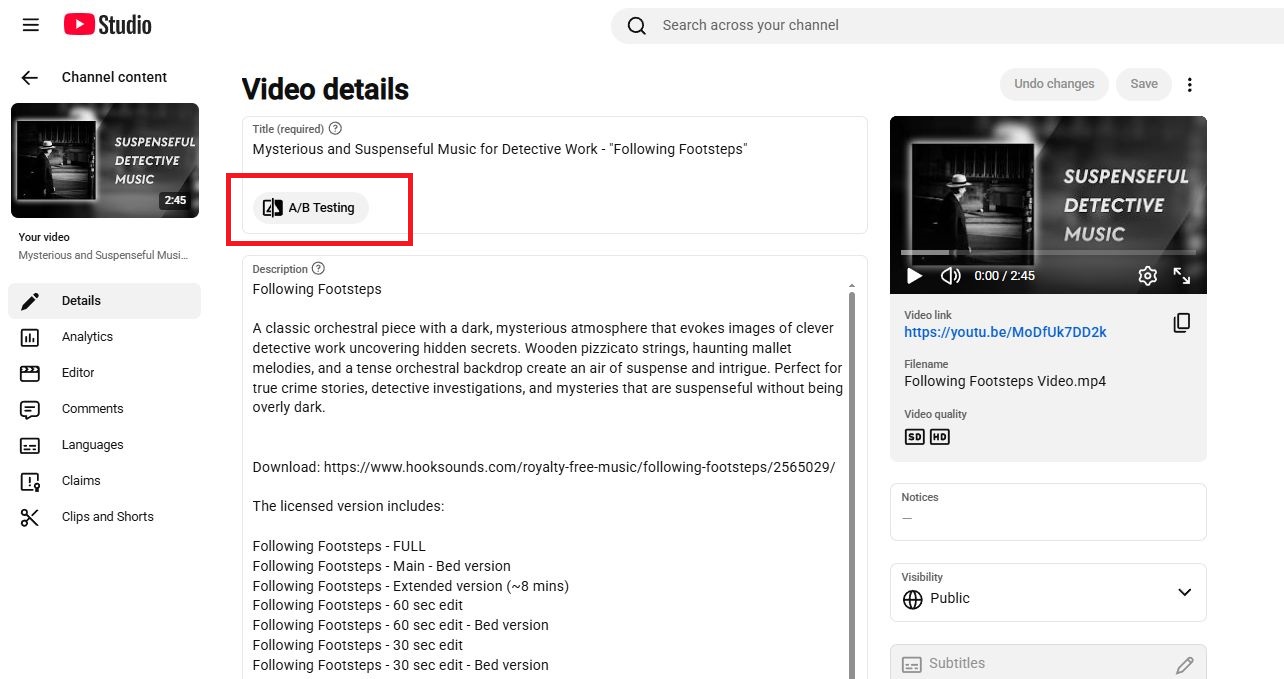
Look for the A/B Testing option:
3. Set up your A/B test next. YouTube lets you test different versions of your video's title, thumbnail, or both. You can usually provide up to three variations for the test.
Here you can select if you only want to A/B test:
- Title
- Thumbnail
- Title & Thumbnail
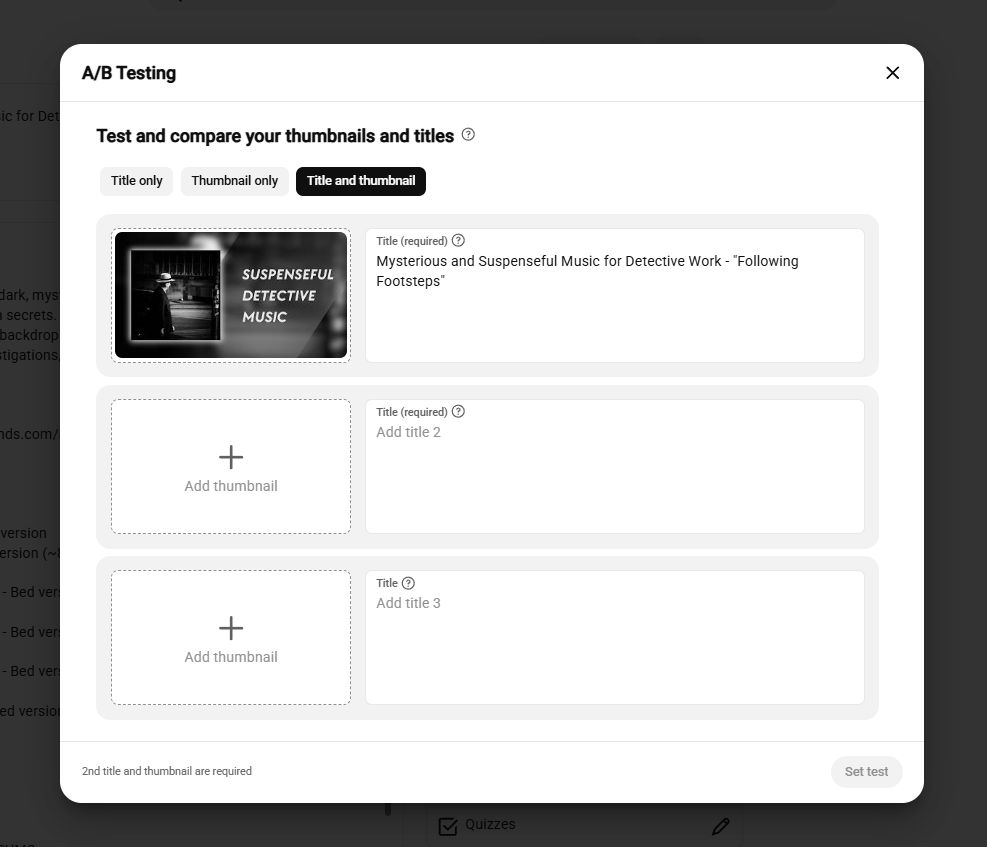
Upload your thumbnail variations and enter your titles. Then click on “Set test” in the lower right corner.
4. Let YouTube run the test
The test will run for 2 weeks.
YouTube shows the different versions to different groups of viewers and measures how they perform. You don't need to manually switch between the versions yourself.
If there isn't enough viewer data, YouTube may not be able to determine a clear result.
5. Check the results
Once the test has collected enough data, YouTube Studio will show you the outcome.
Important: YouTube is determining the winner solely on overall watch time share per impression rather than raw click-through rate (CTR).
If a clear winner emerges, you can use that version for the video. If the results are inconclusive, it means the available data wasn't strong enough to establish a clear difference.
The final decision is up to you - you can keep the winning option, or choose a different one.
A few important tips
- Test one clear idea at a time. If possible, make the variations meaningfully different so you can learn what actually influences performance.
- Don't change everything randomly. Your tests should help you understand what resonates with your audience.
- Test videos with enough traffic. A video with very few impressions may not generate enough data for a useful comparison.
- Use the results as learning opportunities. A winning thumbnail or title doesn't mean you have found a universal formula. Look for patterns that you can apply and test in future videos.
- Test older videos too. A/B testing isn't only useful for newly published videos. Testing the packaging of existing videos can help you learn what might improve their performance.
FAQ
How do I get more views on YouTube?
Create videos that are relevant to your target audience and give them a clear reason to click and keep watching. Your topic, title, thumbnail, and video content all influence how viewers respond to your videos. Use YouTube Analytics to identify what works and apply those insights to future videos.
Why is my YouTube video not getting impressions?
Low impressions can have several causes, including low interest in the topic, strong competition, or limited distribution to your potential audience. Even a video with a good CTR and watch time may receive relatively few impressions. Check your Reach analytics to understand where your impressions are coming from.
Why isn't my YouTube video being recommended?
YouTube recommendations are personalized and depend on factors such as what viewers watch, what they choose to click, and how they respond to the video. Topic interest and competition can also affect how widely a video is recommended. There is no single setting that guarantees more recommendations.
What is the difference between YouTube Studio and YouTube?
YouTube is the platform where viewers watch and interact with videos, while YouTube Studio is the creator platform used to manage your channel. Studio lets you upload videos, view analytics, manage comments, customize your channel, and access other creator tools. In short, YouTube is where people watch your content; YouTube Studio is where you manage it.
What does watch time mean on YouTube?
Watch time is the total amount of time viewers have spent watching your videos during a selected period. For example, if 100 viewers watch a five-minute video completely, that generates 500 minutes of watch time. You can find this metric in YouTube Analytics.
How Long Does a YouTube Video Need to Be For Monetization?
There is no minimum video length required for a video to be monetized once your channel is eligible for the YouTube Partner Program. However, videos that are 8 minutes or longer can include mid-roll ads. Your video should therefore be as long as necessary to provide value rather than being extended simply to reach eight minutes
Conclusion
YouTube Studio gives you the data and tools you need to understand your audience, identify what is working, and make more informed decisions about your future content.
The key is to use Studio consistently rather than only checking it when something goes wrong. Review your analytics, learn from your audience, experiment with your titles, thumbnails, and video formats, and use the available tools to improve your workflow over time.
There is no single formula for growing on YouTube, but YouTube Studio gives you the information you need to understand what is happening and make better decisions with every video you publish.
With this article, we hope to have given you a clear overview of the most important YouTube Studio features and how they can help you grow your channel more effectively.